Build
Your first agent
A complete, worked walkthrough: write a tiny LangGraph agent, tell the control plane about it, run it, and watch it execute in Admin. If you already have an existing agent codebase you want to bring over instead of starting fresh, see Migrate agents — this page is the greenfield "start from nothing" path.
What it is
Two moving pieces work together: the control plane (the
runkite binary) which accepts client requests and hands out work,
and a runner (a small Python or TypeScript process) which
actually holds your graph code and executes it. The plane never imports or
runs your Python/TS source directly — it only knows the name
(agent_id) of each agent, declared in a config file called
langgraph.json. The runner is the thing that reads that same file,
loads the real code, and tells the plane "I can run this."
Why it's split this way
Because the plane and the runner are separate processes talking over a protocol (not one program), you can restart, redeploy, or scale either side independently, and you can write runners in different languages against the exact same plane. This page uses the simplest possible agent (an echo bot) so the plumbing is the only thing you're learning right now — real governance (connectors, human approval, kill switches) layers on top afterward, unchanged.
Step 1 — get the control plane running
Either the 5-minute Try it demo or a full
Install works — you just need
http://localhost:2026/health to respond before continuing.
Step 2 — write the agent
Create my_agent/graph.py:
from typing import Annotated, TypedDict
from langgraph.graph import StateGraph, START, END


class State(TypedDict):
    messages: Annotated[list[dict], lambda a, b: a + b]


def echo_node(state: State) -> State:
    last_message = state["messages"][-1]
    return {"messages": [{"role": "ai", "content": f"Echo: {last_message['content']}"}]}


builder = StateGraph(State)
builder.add_node("echo", echo_node)
builder.add_edge(START, "echo")
builder.add_edge("echo", END)

graph = builder.compile()
This is a plain, ordinary LangGraph graph — nothing Runkite-specific in it at all. That's deliberate: your agent code doesn't need to know it's being run by a control plane.
Step 3 — tell the plane this agent exists
Next to my_agent/, create langgraph.json:
{
  "graphs": {
    "echo_agent": "./my_agent/graph.py:graph"
  },
  "dependencies": ["./my_agent"]
}
The format is "<agent_id>": "<path-to-file>:<variable-name>".
echo_agent is the name clients will use to create runs against this
graph — it can be anything you want, it doesn't have to match a filename.
Step 4 — start the plane, then start the runner
# terminal 1 — control plane (auto-discovers langgraph.json in this directory)
./runkite dev

# terminal 2 — the Python runner, which actually loads and executes graph.py
pip install runkite-runner
python -m runkite_runner --config ./langgraph.json --http-address http://localhost:2026
Watch the plane's logs for a line like
registered agent graph_id=echo_agent — that's your confirmation the
plane now knows this agent exists, even before the runner connects.
Step 5 — actually run it
BASE=http://localhost:2026
THREAD=$(curl -sf -X POST "$BASE/threads" -H 'Content-Type: application/json' -d '{}' | jq -r .thread_id)
curl -sf -X POST "$BASE/threads/$THREAD/runs/wait" \
  -H 'Content-Type: application/json' \
  -d '{"agent_id":"echo_agent","input":{"messages":[{"role":"user","content":"hello"}]}}'
In plain terms: the first call opens a thread (a conversation —
you'll reuse this ID for follow-up turns), the second creates a run
(one execution) inside it and waits for the result. You should get back the echoed
message. If auth is turned on in your setup, add
-H "Authorization: Bearer <your key>" to both calls.
Step 6 — confirm it in Admin
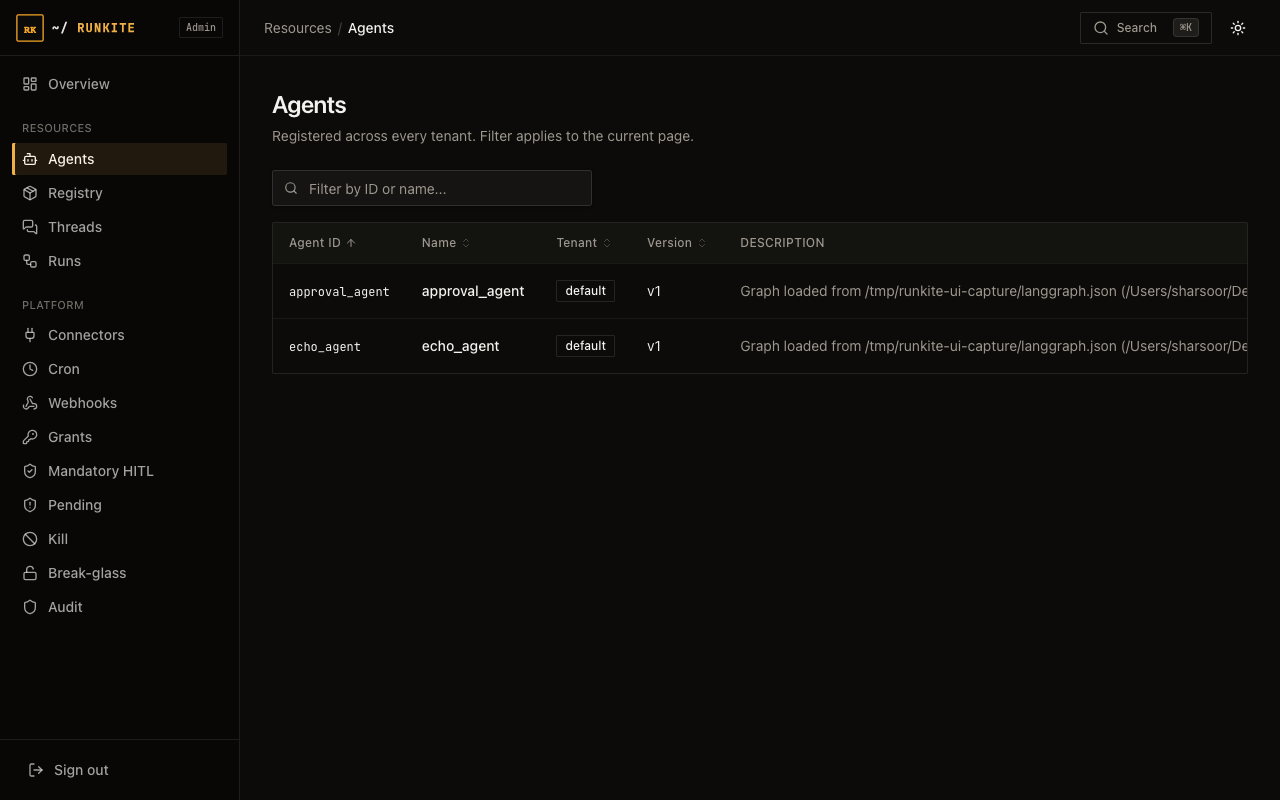
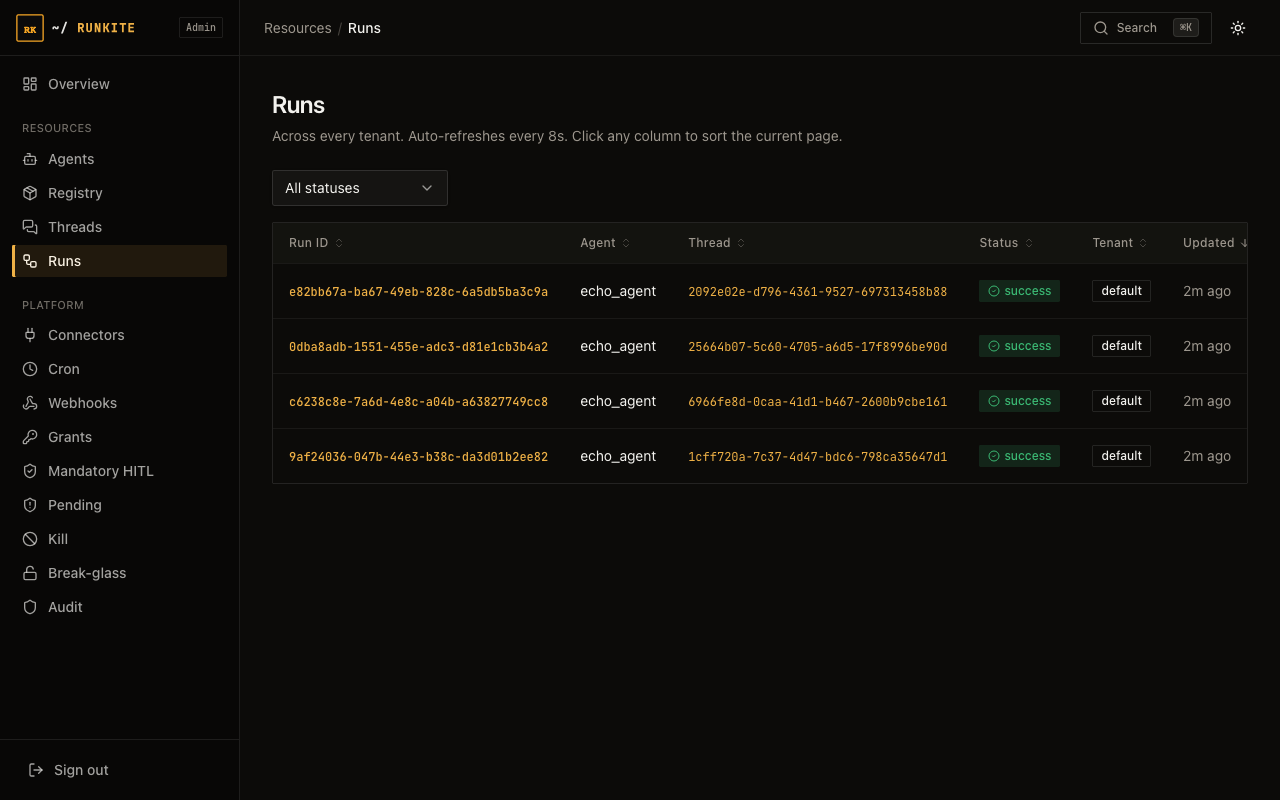
Open http://localhost:2026/admin/ (see Admin UI guide if you haven't logged in before) and check two screens:
What to expect (and how to fix it)
- Agent missing from Admin → Agents — the runner either isn't connected yet, is pointed at the wrong
langgraph.jsonpath, or there's a typo in theagent_id. Check the runner process's own terminal output first — it logs a clear error if it can't find or import your graph file. - Run stuck in "pending" and never starts — usually means no runner is currently connected for the kind of graph you're trying to run, or (if you have auth on) the runner's token doesn't match what the plane expects. Check
docker compose logs runner/ the runner's own terminal for a connection error. - Run finishes with status "error" — open the run in Admin and read the event log; it shows the actual exception from your graph code, not just a generic failure.
- Next steps — give this agent access to an external service via Connectors & HITL, add approval gates with Grants & HITL, or bring over an existing codebase with Migrate agents.
Reference: Agents · Try it · docs/quickstart.md · docs/runners.md